Optimize Your Gaming Router for Peak Performance: 5-Step Guide 2026
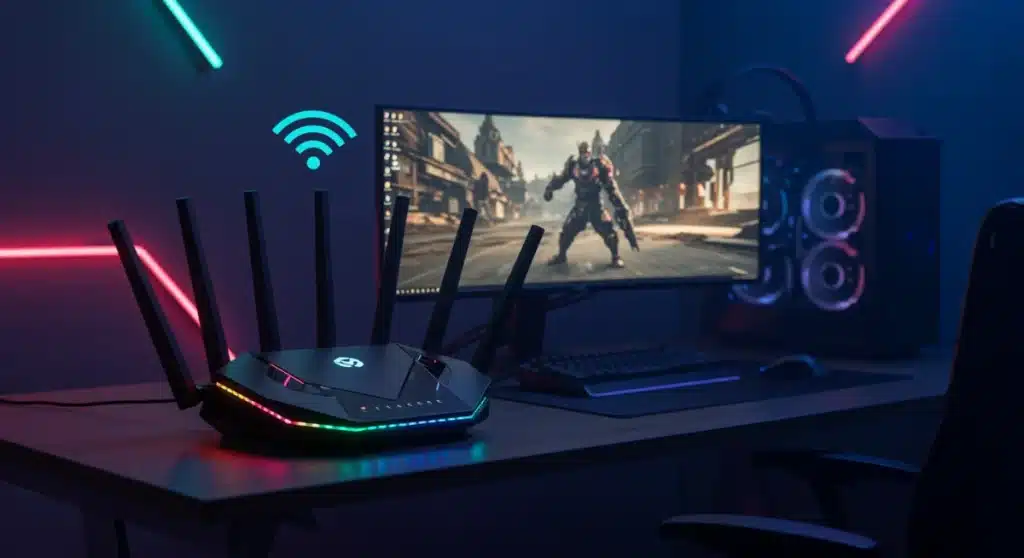
Optimizing your gaming router in 2026 is crucial for achieving the lowest latency and most stable internet connection, directly impacting your competitive edge and overall gaming satisfaction.
In the fast-evolving world of online gaming, every millisecond counts. To gain a significant edge and ensure a seamless, lag-free experience, mastering the art of optimizing your gaming router for peak performance: a 5-step guide for 2026 is no longer optional but essential. This guide will walk you through critical adjustments and strategies to transform your home network into a gaming powerhouse.
Advertisements
Step 1: Strategic Router Placement and Hardware Upgrade
The physical location of your gaming router might seem like a minor detail, but its impact on signal strength and stability is immense. A router’s signal can be hampered by various obstructions, leading to frustrating lag spikes and disconnects. Furthermore, as gaming technology advances, so too should your network hardware. Upgrading your router can unlock new levels of performance.
Think about your router as the central nervous system of your gaming setup. Placing it optimally ensures that vital data packets reach your gaming rig with minimal interference. Concrete walls, large metal objects, and even certain appliances can act as signal inhibitors. Many gamers overlook this fundamental step, assuming a powerful router will compensate for poor placement. However, even the most advanced router will struggle if it’s placed in a suboptimal location.
Optimal Router Placement
Finding the sweet spot for your router can drastically improve your Wi-Fi signal. Consider elevating the router, placing it centrally, and away from common interference sources.
- Central Location: Place the router as close to your primary gaming device as possible, ideally in a central part of your home to distribute Wi-Fi evenly.
- Elevated Position: Wi-Fi signals tend to broadcast downwards. Placing your router on a higher shelf or desk can help the signal propagate more effectively throughout your space.
- Away from Obstructions: Keep your router clear of thick walls, large metal objects (like refrigerators or filing cabinets), and other electronics that can cause interference.
Considering a Hardware Upgrade
If your current router is several years old, it might not support the latest Wi-Fi standards or have the processing power needed for modern gaming. Newer routers offer significant improvements in speed, range, and latency management.
For 2026, look for routers supporting Wi-Fi 6E or even Wi-Fi 7, which operate on the 6GHz band, offering dedicated, uncongested channels for gaming. These advanced routers often feature multi-gigabit ports, powerful processors, and sophisticated QoS (Quality of Service) engines designed specifically for gaming traffic. While an investment, a new router can provide a substantial boost to your network’s overall performance, ensuring it can handle the demands of future games and high-bandwidth applications.
In conclusion, don’t underestimate the power of strategic router placement and the benefits of a timely hardware upgrade. These foundational steps lay the groundwork for a truly optimized gaming network, minimizing physical impediments and ensuring your system is equipped with the latest technology for superior performance.
Step 2: Prioritizing Gaming Traffic with QoS and Bandwidth Management
Even with a robust internet connection, your gaming experience can suffer if other devices on your network are hogging bandwidth. This is where Quality of Service (QoS) and effective bandwidth management come into play. These features allow you to prioritize gaming traffic, ensuring your online matches remain smooth and responsive, regardless of other network activity.
Imagine a busy highway: without traffic management, everyone competes for the same lanes, leading to congestion. QoS acts as a traffic controller for your network, giving priority to your gaming data. This means that while someone else might be streaming 4K video or downloading large files, your game packets are fast-tracked, preventing lag and maintaining a low ping.
Implementing Quality of Service (QoS)
Most modern gaming routers come with built-in QoS features. Accessing your router’s administration panel (usually via a web browser) will allow you to configure these settings. Look for options labeled QoS, Traffic Prioritization, or Bandwidth Management. The goal is to identify your gaming device and gaming applications, then assign them the highest priority.
- Enable QoS: Navigate to your router’s settings and find the QoS section.
- Prioritize Gaming Devices: Identify your gaming PC or console by its MAC address or IP address and set its priority to ‘Highest’ or ‘Gaming’.
- Prioritize Gaming Applications: Some advanced QoS systems allow you to prioritize specific games or gaming services. This ensures that even if other devices are active, your game’s data always gets preferential treatment.
Effective Bandwidth Control
Beyond simple prioritization, some routers offer more granular control over bandwidth allocation. This can be particularly useful in households with multiple users and diverse internet demands. You can set limits for non-essential devices or applications, ensuring a minimum amount of bandwidth is always reserved for gaming.
It’s a delicate balance; you don’t want to cripple other users’ experiences entirely. Instead, aim to set reasonable caps that prevent any single device from monopolizing the network. Regularly monitor your network usage to fine-tune these settings. Many routers provide real-time traffic monitoring tools that can help you identify bandwidth hogs and adjust your QoS rules accordingly. This proactive approach ensures your gaming sessions are consistently optimized, free from the frustrations of network congestion.
By diligently configuring QoS and managing bandwidth, you create a dedicated express lane for your gaming data. This step is critical for maintaining a competitive edge and enjoying a fluid, uninterrupted online gaming experience, even in a busy network environment.
Step 3: Optimizing Wi-Fi Channels and Frequencies
Wi-Fi signals, while convenient, are susceptible to interference from neighboring networks and other electronic devices. This interference can lead to reduced speeds, increased latency, and dropped connections. Understanding and optimizing your Wi-Fi channels and frequencies is crucial for minimizing these issues and ensuring a clean, stable connection for your gaming.
Think of Wi-Fi channels as lanes on a road. If too many cars (networks) are trying to use the same lane, traffic slows down. By choosing less congested channels, you allow your data to flow more freely and quickly. This is particularly important for gaming, where even minor delays can impact your reaction time and overall performance.
Choosing the Right Frequency Band
Most modern routers operate on both 2.4GHz and 5GHz bands, and increasingly, 6GHz with Wi-Fi 6E/7. Each has its advantages and disadvantages for gaming.
- 2.4GHz Band: Offers a wider range and better penetration through walls, but it’s often more crowded and slower. It’s generally not ideal for competitive gaming due to potential interference.
- 5GHz Band: Provides faster speeds and less interference due to more channels, but has a shorter range and struggles with obstacles. This is typically the preferred band for gaming when in close proximity to the router.
- 6GHz Band (Wi-Fi 6E/7): The newest band, offering even more channels and significantly less congestion. If your router and devices support it, this is the ultimate choice for low-latency, high-speed gaming.
Selecting Optimal Wi-Fi Channels
Within each frequency band, there are multiple channels. Using a Wi-Fi analyzer app (available for smartphones and PCs) can help you identify which channels in your area are most congested. For the 2.4GHz band, channels 1, 6, and 11 are non-overlapping and generally recommended. For the 5GHz and 6GHz bands, there are many more non-overlapping channels, making it easier to find a clear one.
After identifying the least congested channels, manually set your router to use them. This prevents your router from automatically switching to a crowded channel, which can cause intermittent lag. Regularly re-scan your environment, as neighboring networks can change their channels, potentially reintroducing interference. This proactive channel management is a game-changer for maintaining a consistently strong and clear Wi-Fi connection for gaming.
By carefully selecting the appropriate frequency band and meticulously choosing uncongested Wi-Fi channels, you effectively minimize wireless interference. This optimization is a critical step in ensuring a stable, high-speed connection, crucial for any serious gamer looking to eliminate frustrating lag and dropped frames.
Step 4: Firmware Updates and Advanced Security Settings
Keeping your router’s firmware up to date is as vital as updating your PC’s operating system or graphics drivers. Firmware updates often include performance enhancements, bug fixes, and crucial security patches that can significantly improve your router’s stability and speed. Neglecting these updates can leave your network vulnerable and operating below its potential.
Beyond updates, configuring robust security settings protects your network from unauthorized access, which can steal bandwidth and introduce security risks. A compromised network not only poses a threat to your personal data but can also degrade your gaming performance by allowing unknown devices to consume valuable resources.
Regular Firmware Updates
Router manufacturers frequently release new firmware versions. These updates can optimize Wi-Fi performance, improve QoS algorithms, and even introduce new features. Checking for updates is usually done through your router’s web interface.
- Access Router Interface: Log in to your router’s administration page (typically by typing its IP address into a web browser).
- Locate Firmware Update Section: This is often found under ‘Administration’, ‘System Tools’, or ‘Advanced Settings’.
- Download and Install: Follow the on-screen instructions to download and install the latest firmware. This process might require a router reboot.
Enhancing Network Security
A secure network is a fast network. Unauthorized users can slow down your connection, and malicious software can compromise your entire system. Strong security measures are non-negotiable for any gaming setup.
Start by changing the default administrator username and password for your router. These are often generic and easily guessed. Use a strong, unique password for your Wi-Fi network (WPA2 or WPA3 encryption is recommended). Consider enabling a guest network for visitors to keep your primary gaming network isolated. Disabling WPS (Wi-Fi Protected Setup) can also enhance security as it’s known to have vulnerabilities. Regularly review your router’s connected devices list to identify any unfamiliar entries. Proactive security measures ensure that your network bandwidth is exclusively used for your gaming and other legitimate activities, safeguarding both performance and privacy.
By consistently updating your router’s firmware and implementing robust security settings, you ensure your network is running efficiently and securely. These practices not only safeguard your data but also contribute directly to a stable and optimized connection, critical for high-performance gaming in 2026.
Step 5: Utilizing Advanced Features: Port Forwarding and Gaming VPNs
Once the foundational optimizations are in place, delving into advanced features like port forwarding and considering a gaming VPN can provide that extra edge for specific gaming scenarios. While not always necessary for every gamer, these tools can resolve connectivity issues, improve matchmaking, and potentially reduce latency in certain cases.
Port forwarding essentially creates a direct pathway through your router’s firewall for specific game traffic. Without it, your router might block incoming connections critical for peer-to-peer gaming or hosting game servers, leading to NAT type issues and difficulties connecting with friends. Gaming VPNs, on the other hand, can sometimes route your connection through more optimized paths, bypassing congested internet service provider (ISP) routes.
Implementing Port Forwarding
Port forwarding is crucial for games that rely on specific ports for online multiplayer. Each game typically has a list of ports it uses, which can be found through a quick online search or the game’s support documentation. Setting this up requires accessing your router’s settings.
- Identify Game Ports: Find the specific TCP/UDP ports required by your game.
- Assign Static IP: Assign a static IP address to your gaming PC or console within your router’s settings. This ensures the port forwarding rule always applies to the correct device.
- Configure Port Forwarding: In your router’s interface, navigate to the ‘Port Forwarding’ or ‘Virtual Servers’ section. Create new rules for each required port, directing incoming traffic to your gaming device’s static IP address.
Considering a Gaming VPN
While a VPN typically adds a layer of encryption and routes your traffic through an additional server, which can sometimes increase latency, specialized gaming VPNs aim to do the opposite. They often connect to servers specifically optimized for gaming traffic, potentially reducing ping by bypassing suboptimal ISP routing.
It’s important to note that a gaming VPN isn’t a universal solution for lag; its effectiveness depends heavily on your location, your ISP’s routing, and the VPN provider’s network. Some gamers find significant improvements, especially when connecting to game servers in distant regions or when their ISP experiences heavy congestion. Before committing, consider trying a reputable gaming VPN with a free trial to assess its impact on your specific gaming experience. Experimentation is key to determining if a gaming VPN offers a tangible benefit for your setup.
By strategically utilizing port forwarding and exploring the benefits of a gaming VPN, you can further fine-tune your network for optimal gaming performance. These advanced configurations address specific connectivity challenges and can provide an additional competitive edge for dedicated gamers.
Step 6: Regular Network Monitoring and Maintenance
Optimizing your gaming router is not a one-time task; it’s an ongoing process that requires regular monitoring and maintenance. Just like a high-performance gaming PC needs periodic cleaning and software updates, your network infrastructure benefits from consistent attention. Environmental factors, new devices, and software updates can all subtly impact your network’s efficiency over time.
Ignoring regular check-ups can lead to a gradual degradation of performance, making you wonder why your once-blazing fast connection now feels sluggish. Proactive monitoring helps you catch issues before they become major problems, ensuring your gaming experience remains consistently high-quality.
Tools for Network Monitoring
Several tools can help you keep an eye on your network’s health. Your router’s administrative interface often provides basic statistics, but dedicated software or online services can offer more detailed insights.
- Router Admin Panel: Check connected devices, bandwidth usage, and system logs for unusual activity.
- Ping and Traceroute: Use command-line tools to test latency to game servers and identify potential routing issues.
- Wi-Fi Analyzer Apps: Periodically scan your environment for channel congestion (as discussed in Step 3) to ensure your chosen channels remain optimal.
- Speed Tests: Regularly run speed tests (e.g., Speedtest.net) to verify your internet speed and consistency.
Routine Maintenance Practices
Beyond monitoring, establishing a routine for physical and digital maintenance can prevent many common network problems. These simple habits contribute significantly to the longevity and performance of your gaming network.
First, consider a periodic router reboot. Just like your computer, routers can benefit from a fresh start to clear out temporary glitches and refresh their connection. Aim for a reboot once a month, or more frequently if you notice any unusual slowdowns. Second, keep your router’s physical environment clean and well-ventilated to prevent overheating, which can lead to performance throttling and hardware failure. Finally, regularly review your router’s security settings and connected devices. Remove any unauthorized devices and update passwords periodically. Staying vigilant about these maintenance tasks ensures that your gaming router continues to deliver peak performance, offering you a reliable and lag-free online gaming experience well into 2026 and beyond.
Regular network monitoring and diligent maintenance are the pillars of sustained high performance. By dedicating a little time to these practices, you ensure your gaming network remains a reliable and powerful asset, consistently delivering the low latency and high speeds critical for competitive gaming.
| Key Optimization Step | Brief Description |
|---|---|
| Placement & Hardware | Optimize router location and consider upgrading to Wi-Fi 6E/7 for best signal. |
| QoS & Bandwidth | Prioritize gaming traffic to ensure stable, low-latency connections. |
| Wi-Fi Channels | Select uncongested channels (5GHz/6GHz) for minimal interference. |
| Firmware & Security | Keep firmware updated and secure your network to prevent slowdowns. |
Frequently asked questions about gaming router optimization
Router placement directly impacts signal strength and stability. Obstacles like walls and other electronics can degrade Wi-Fi signals, leading to higher latency and packet loss. Optimal placement ensures a clear path for data, crucial for responsive gaming.
Quality of Service (QoS) allows you to prioritize specific types of network traffic. For gaming, it ensures that your game’s data packets receive preferential treatment over other activities like streaming or downloads, minimizing lag and maintaining a stable connection.
For optimal gaming, the 5GHz band is generally preferred due to its faster speeds and less interference. If your devices and router support it, the 6GHz band (Wi-Fi 6E/7) offers even greater advantages with dedicated, uncongested channels.
It’s recommended to check for and install router firmware updates regularly, ideally every few months or whenever a new version is released. These updates often include performance improvements, bug fixes, and vital security patches.
While standard VPNs can increase latency, specialized gaming VPNs might reduce ping by routing your connection through more optimized paths, bypassing congested ISP networks. Its effectiveness varies based on your location and the VPN service.
Conclusion
Achieving and maintaining peak gaming performance in 2026 demands a proactive and comprehensive approach to network optimization. By diligently following these five crucial steps—strategic router placement and hardware upgrades, intelligent QoS and bandwidth management, precise Wi-Fi channel and frequency optimization, consistent firmware updates and robust security measures, and the strategic use of advanced features like port forwarding and gaming VPNs—you can transform your home network into a formidable gaming ally. Remember, the digital battlefield of tomorrow requires a network capable of delivering speed, stability, and responsiveness without compromise. Investing time in these optimizations will ensure your gaming experience remains fluid, competitive, and truly immersive for years to come.